Skip to content
Features

Envoy sees the whole picture.

Envoy understands your marketing goals and makes recommendations for your website every day.

Two marketing leaders at one monitor showing the Envoy overview; she gestures at the screen while he leans in.
01 · Overview

The first screen of the day.
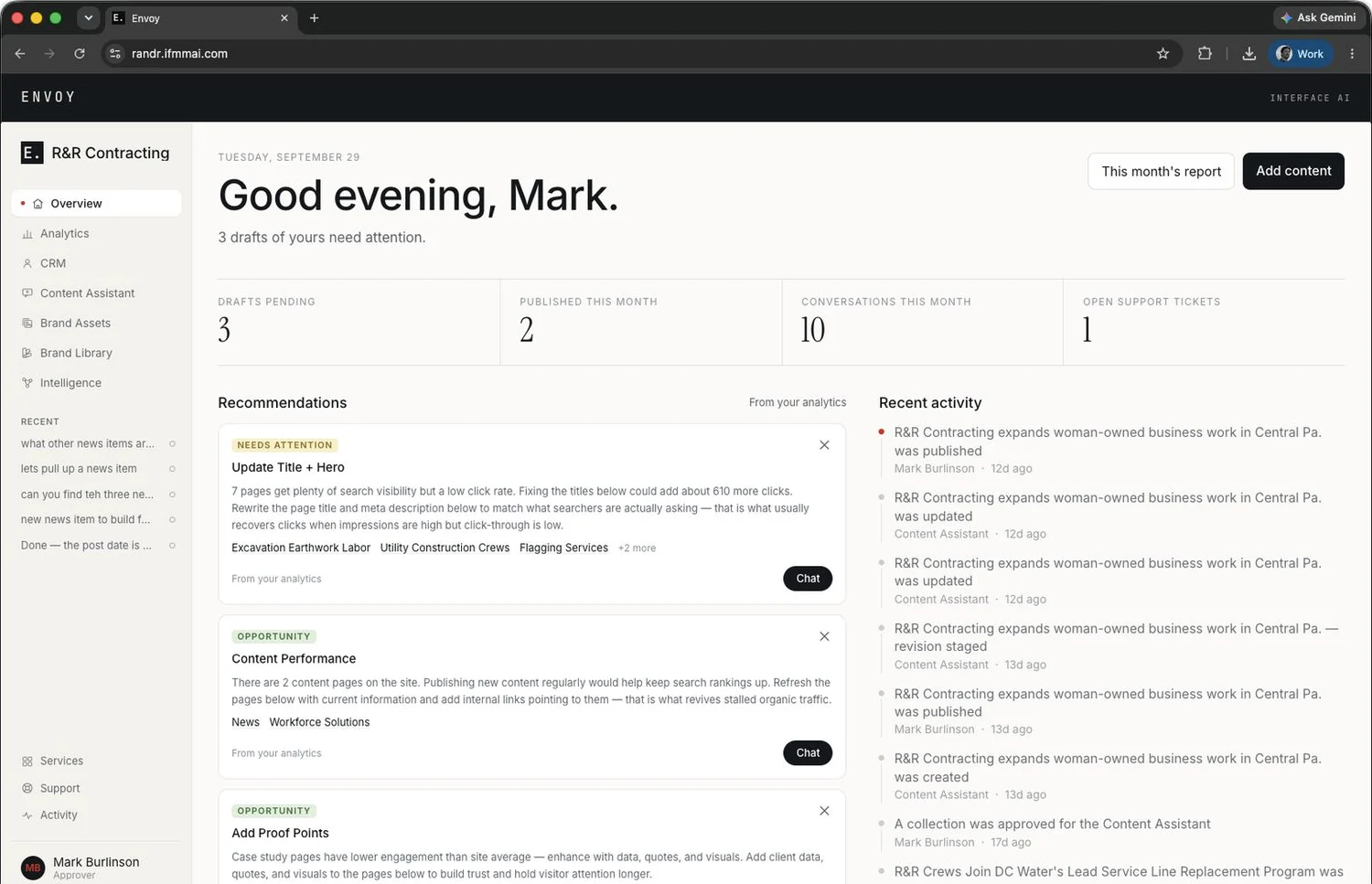
R&R Contracting's Envoy overview: greeting, monthly figures, recommendations and recent activity.

The overview shows what is waiting for review, what was published, which leads arrived, and what needs attention next.

Waiting on you
Drafts that need your approval
Recommendations
Each names the page and the reason
Recent activity
What changed, and who changed it
02 · Content assistant

Describe the change. Review the finished page.

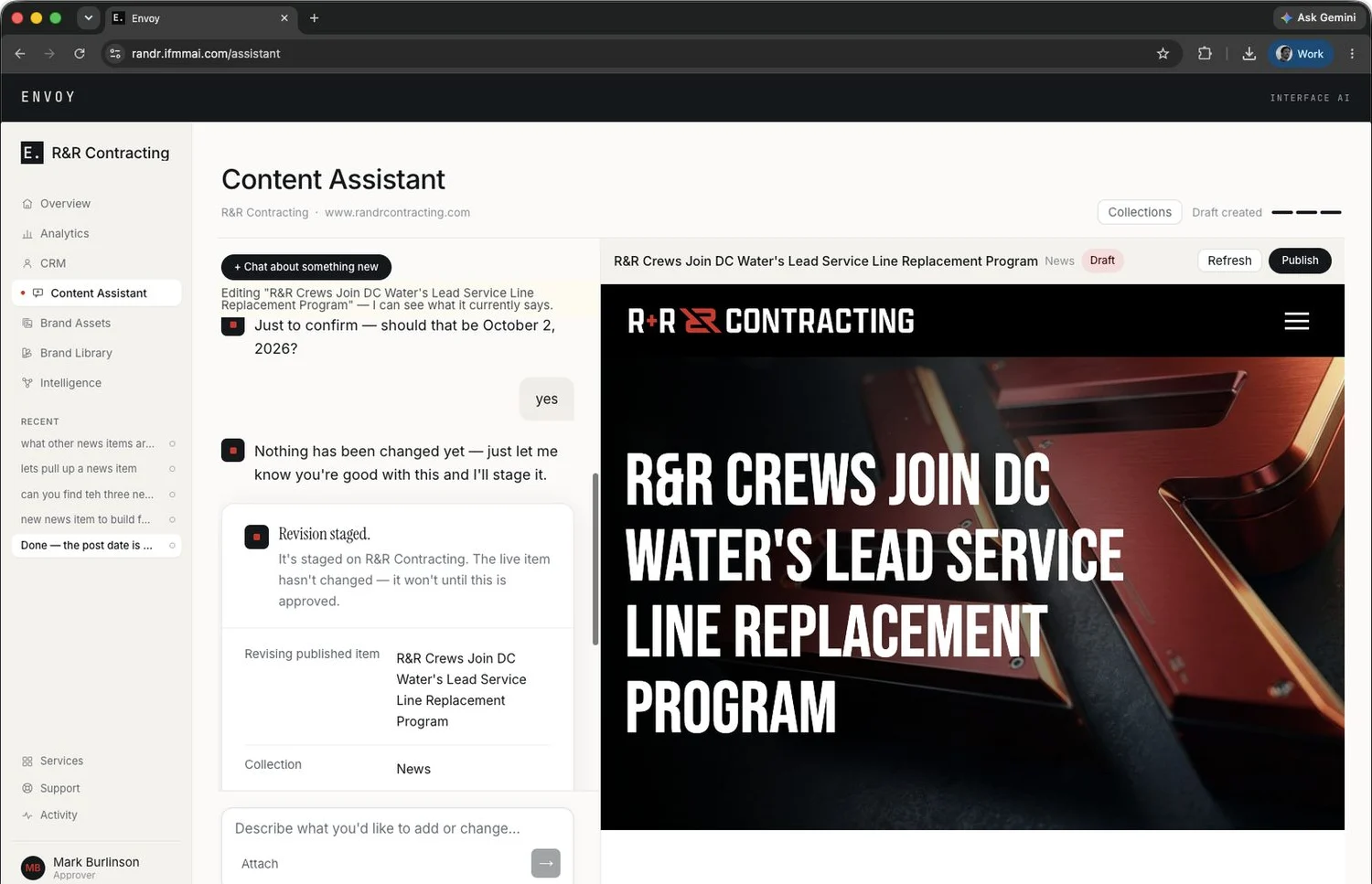
The Envoy assistant beside a live preview of a news story in R&R Contracting’s page template.

Tell the assistant what you need in plain language, or hand it a document you already have. It asks for whatever is missing and writes only into the parts of the site your team is allowed to edit.

Live preview
Your page, in your site's template
Revisions
Staged while the live page stays as it is
Conversations
Pick up where you left off
03 · Approval and publishing

Publishing is a permission.

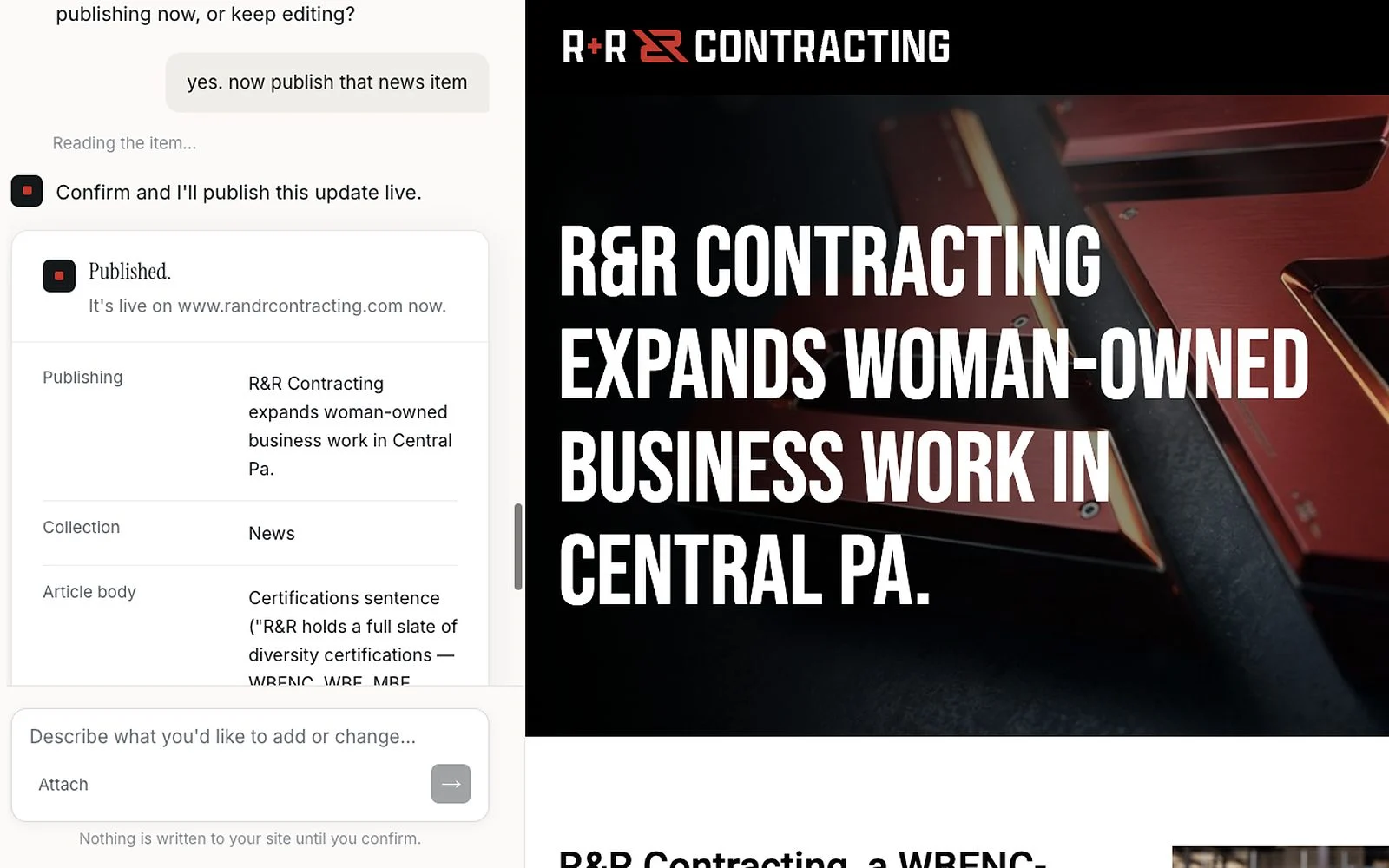
An approver asks the Envoy assistant to publish a news story; it asks for confirmation, then reports the page is live.

Contributors draft. Approvers publish, from the same conversation. The assistant publishes only when an approver tells it to, and it asks for confirmation before the page goes live. Firms that prefer it can leave the final step with Interface.

Contributor
Drafts only
Approver
Publishes, after confirming
Interface gate
Optional, per site
04 · Reporting and Analytics

The month opens in a sentence.

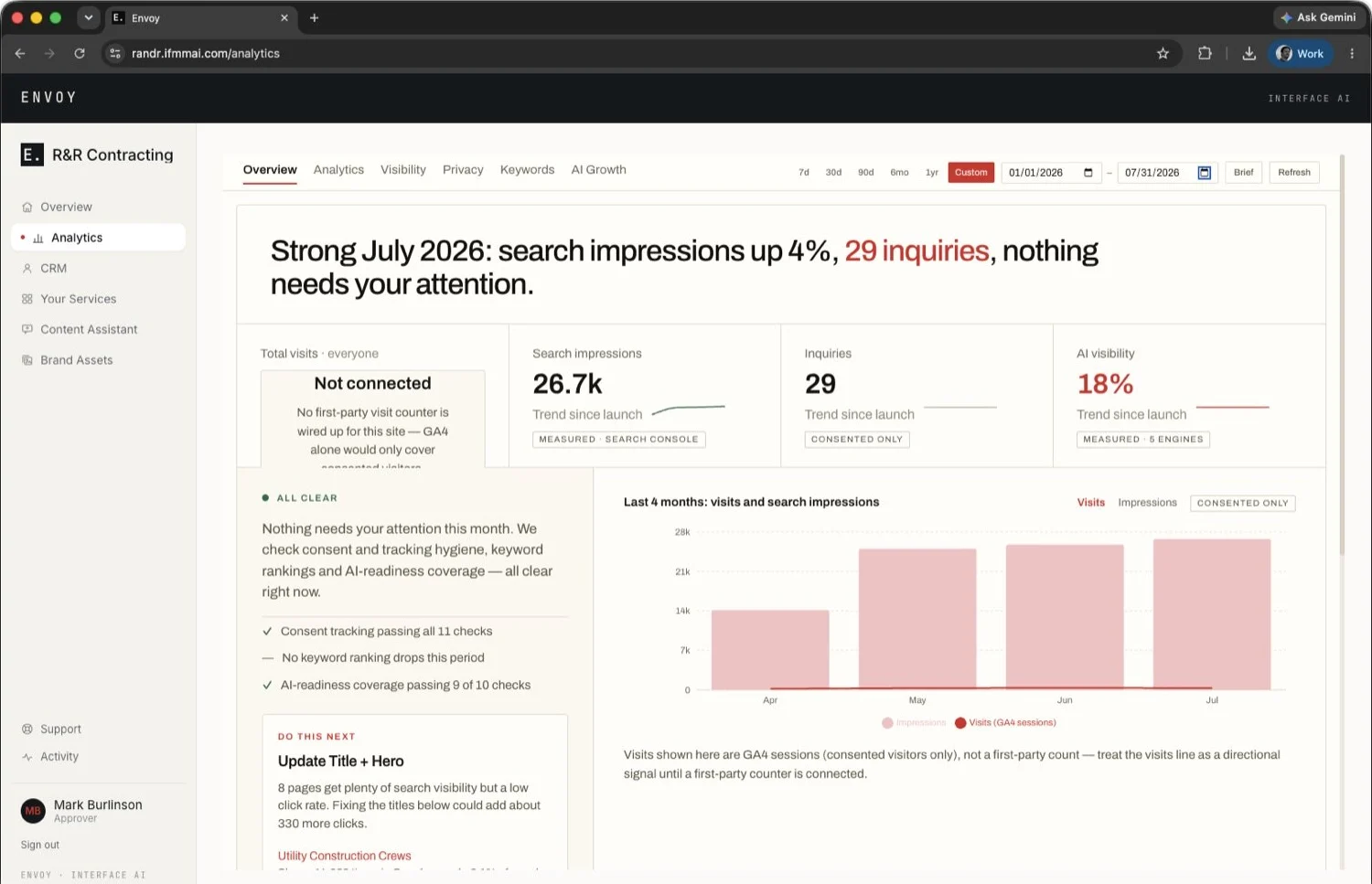
The Envoy analytics view opening with a plain-language monthly summary above the charts.

The site's reporting lives in the same portal, with no second login. A plain-language summary comes first, then the numbers: where visitors came from, what they did, and which search terms bring them to the site. Envoy reads the reporting and raises recommendations. Open one and it becomes a draft.

Summary
The month in plain language
Numbers
Shown with their caveats
Next step
A recommendation opens as a conversation
05 · AI-engine visibility

Where AI engines cite you, and where they don't.

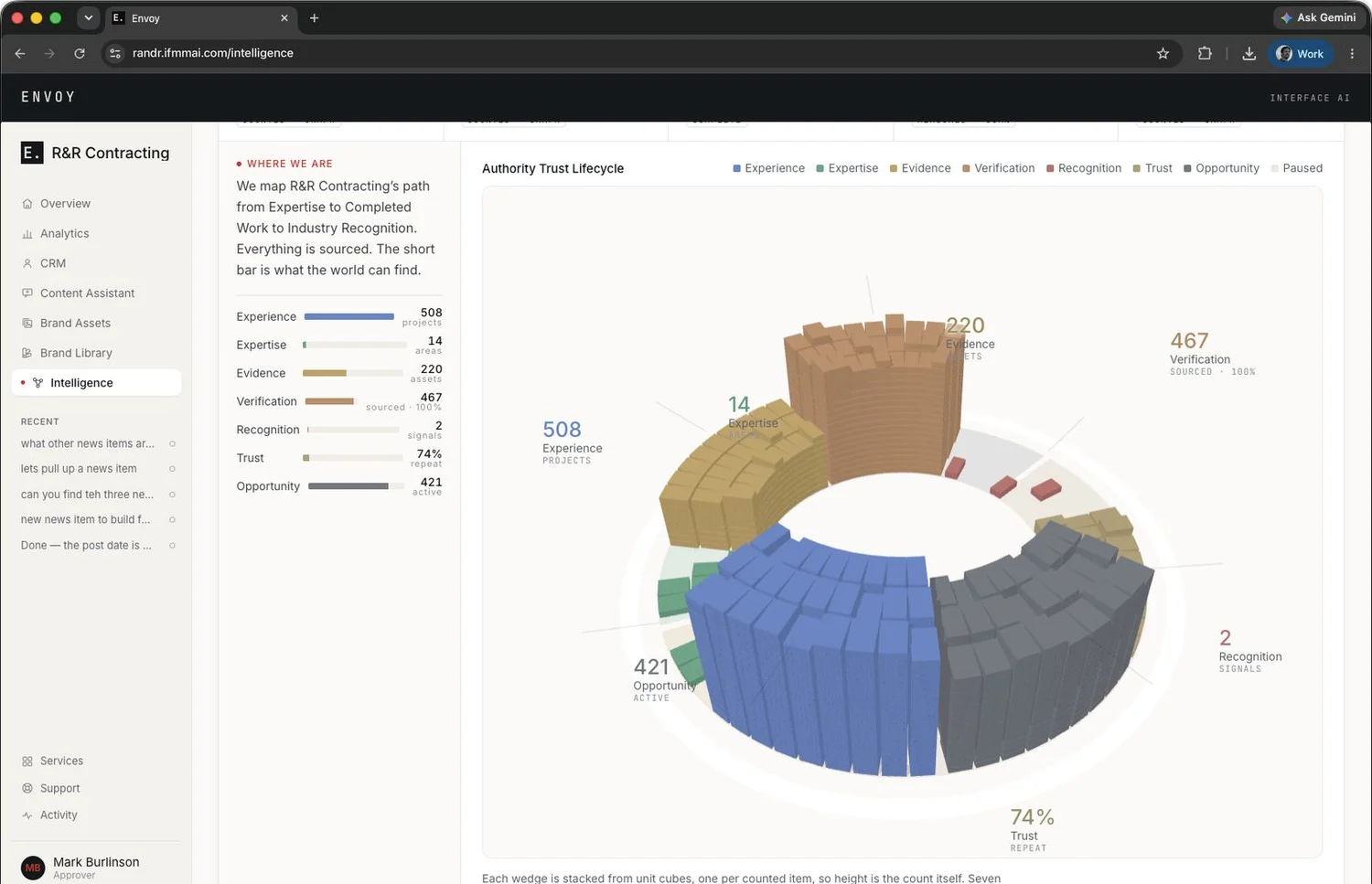
The Envoy Intelligence lifecycle view: a ring of stacked blocks, one per counted item, from experience to recognition.

Interface builds a knowledge base for each firm. The Intelligence view measures how much of that record is sourced and how much of it AI engines repeat back. Mine the Gap ranks the claims that carry the business by the distance between what is proven and what an engine can cite.

Lifecycle
From experience through recognition
Mine the Gap
Claims ranked by citation gap
Proof
Which answers recommend the firm, and which only mention it
06 · CRM and Leads

Every inquiry, with its source.

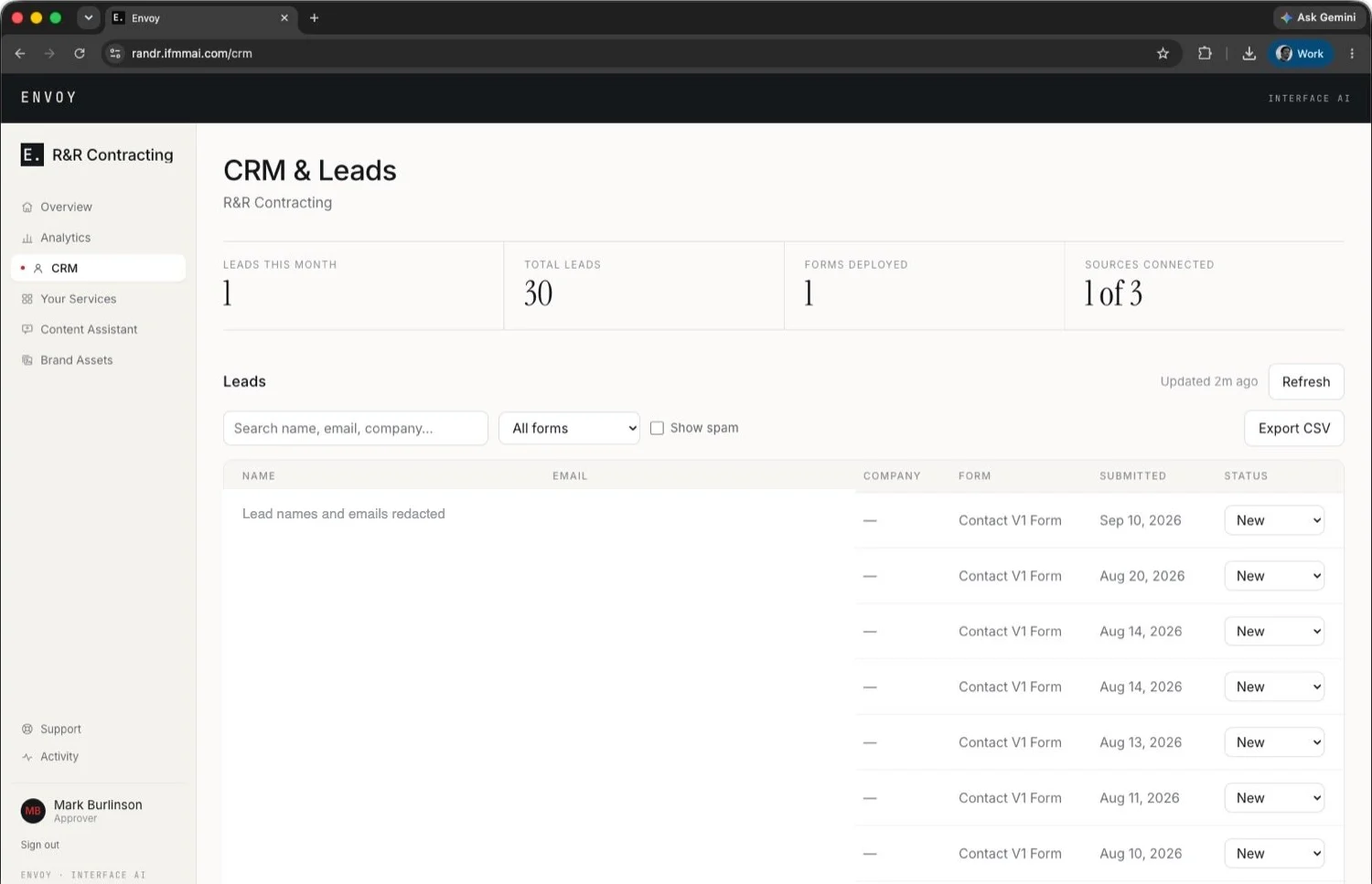
The Envoy leads inbox listing form submissions with their source form and status. Personal details redacted.

Personal details redacted.

Form submissions arrive in the portal with the page and form they came from. Spam is moved out of view and kept, so a real inquiry caught by the filter can be recovered.

Source
The page and form it came from
Status
New, contacted, qualified, closed
Export
For whoever runs business development
07 · Brand assets

The logo the brand allows.

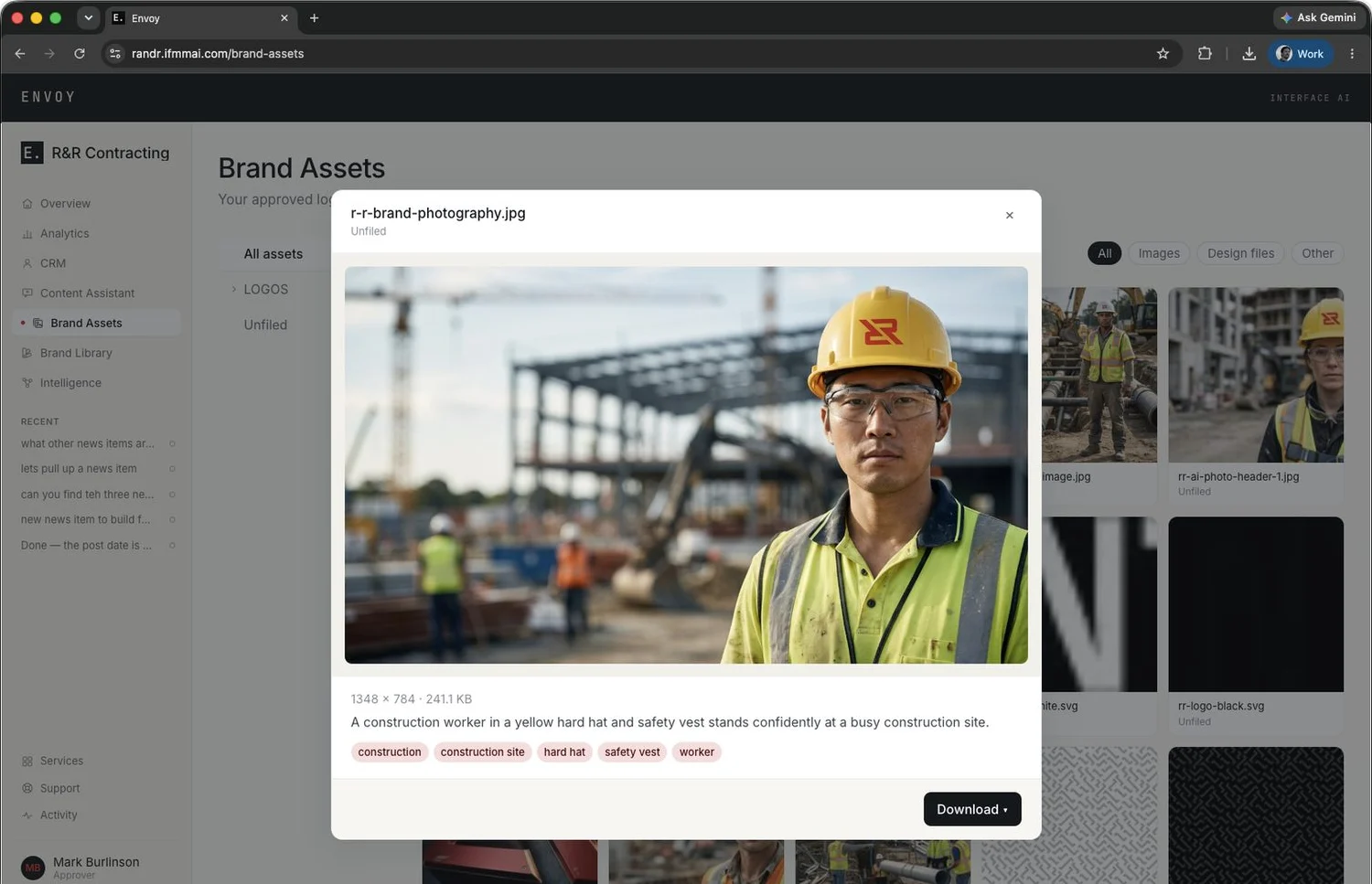
The Envoy brand assets library with one photograph open, showing its size, description, tags and a download menu.

Approved logos and photography, synced from the library Interface's design team works from. Open an image to see its size, a one-line description and its tags.

Folders
Logos, photography, other files
Search
Descriptions and tags
Download
The approved version
08 · Brand library

How your brand looks and sounds.

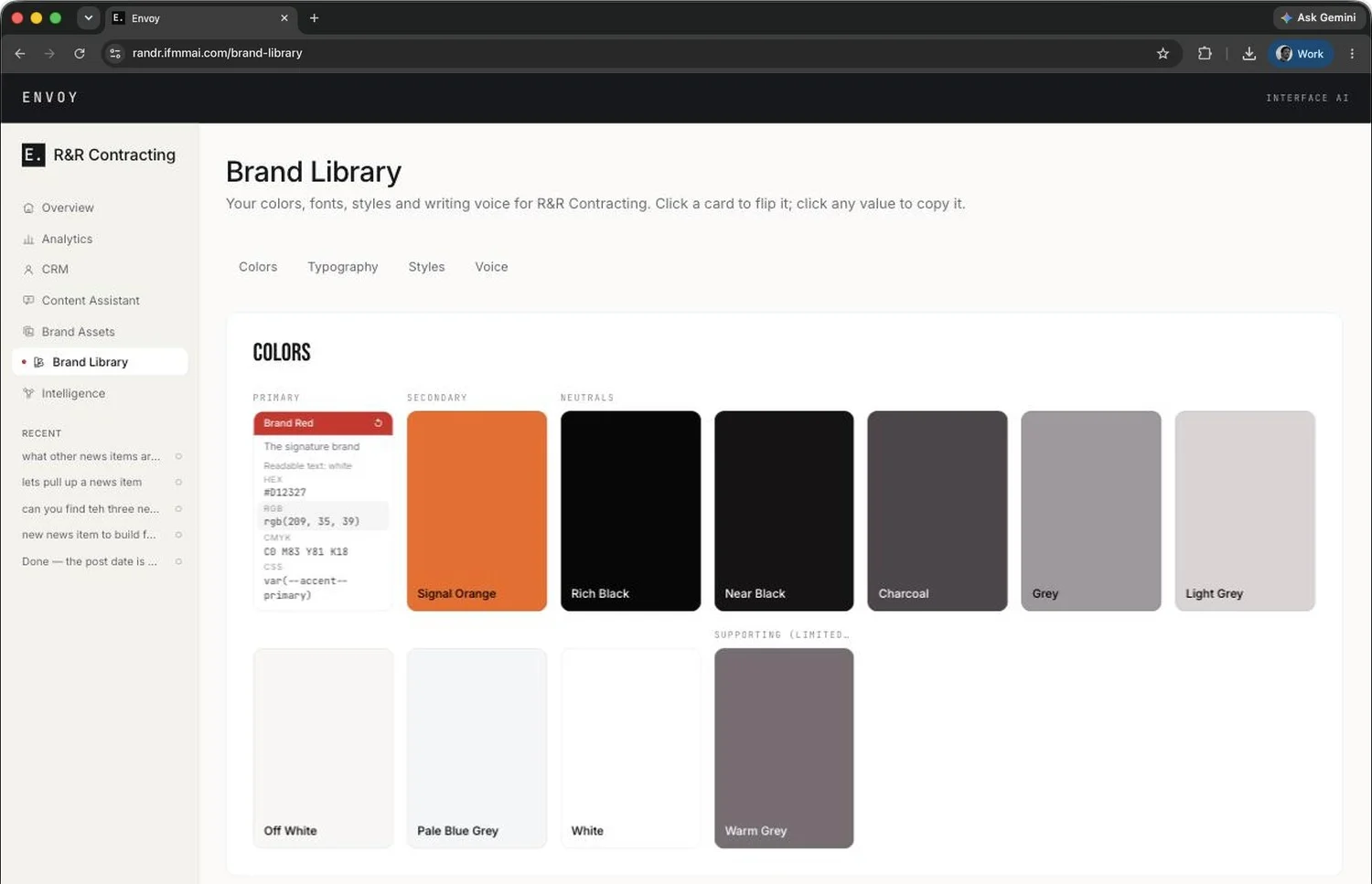
The Envoy Brand Library color palette for R&R Contracting, with the Brand Red card flipped to show its HEX, RGB, CMYK and CSS values.

Colors, typefaces, a type scale, and button and link styles. Click any value to copy it.

Colors
HEX, RGB, CMYK and CSS values
Type
Every style in the real font
Voice
Words to use, words to avoid
Also in every portal

The parts you don't see in a screenshot.

Every site, one sign-in
Switch between your firm's sites without signing out.
Sign in by email link
No passwords to manage.
Drafts
Split into the ones that need you and the ones already published. Empty fields are named.
Activity log
What was created, approved and published, and every change to who has access.
Support
Requests go from inside the portal to your account team, the people who designed the site.
Runs on Claude
Bound to your site. It confirms the target site before every change.

See it on a site like yours.

A working session, and how Interface would run yours.

Request a demo

Pick a time that works for you.

Booking opens in Interface's scheduler. Open it in a new tab